Help center
Get help with AIFXTraderX
Answers to common questions about signals, execution and billing. If you are still stuck you can always reach out to us.
Getting started
New to AIFXTraderX Start here to understand how signals and execution work together.
Signals and dashboards
How to request signals, read the output and keep dashboards under control.
See signal usage guide.
Billing and plans
Understand upgrade, downgrade and how subscriptions work with Stripe.
See billing help.
Getting started with AIFXTraderX
Signals • Execution • Logs- Create an account Sign up, confirm your email and log in to the dashboard.
- Choose a plan Start on Free while you explore, then upgrade to Basic, Pro or Elite for higher limits and extra features.
- Request your first signals Pick your pairs, MA period and risk mode, then run a signal request from the dashboard.
- Review signal details Each signal shows entry, stop, target, risk information and optional explanation fields.
- Connect execution If your plan allows EA or API access you can link AIFXTraderX to your broker for semi automatic execution.
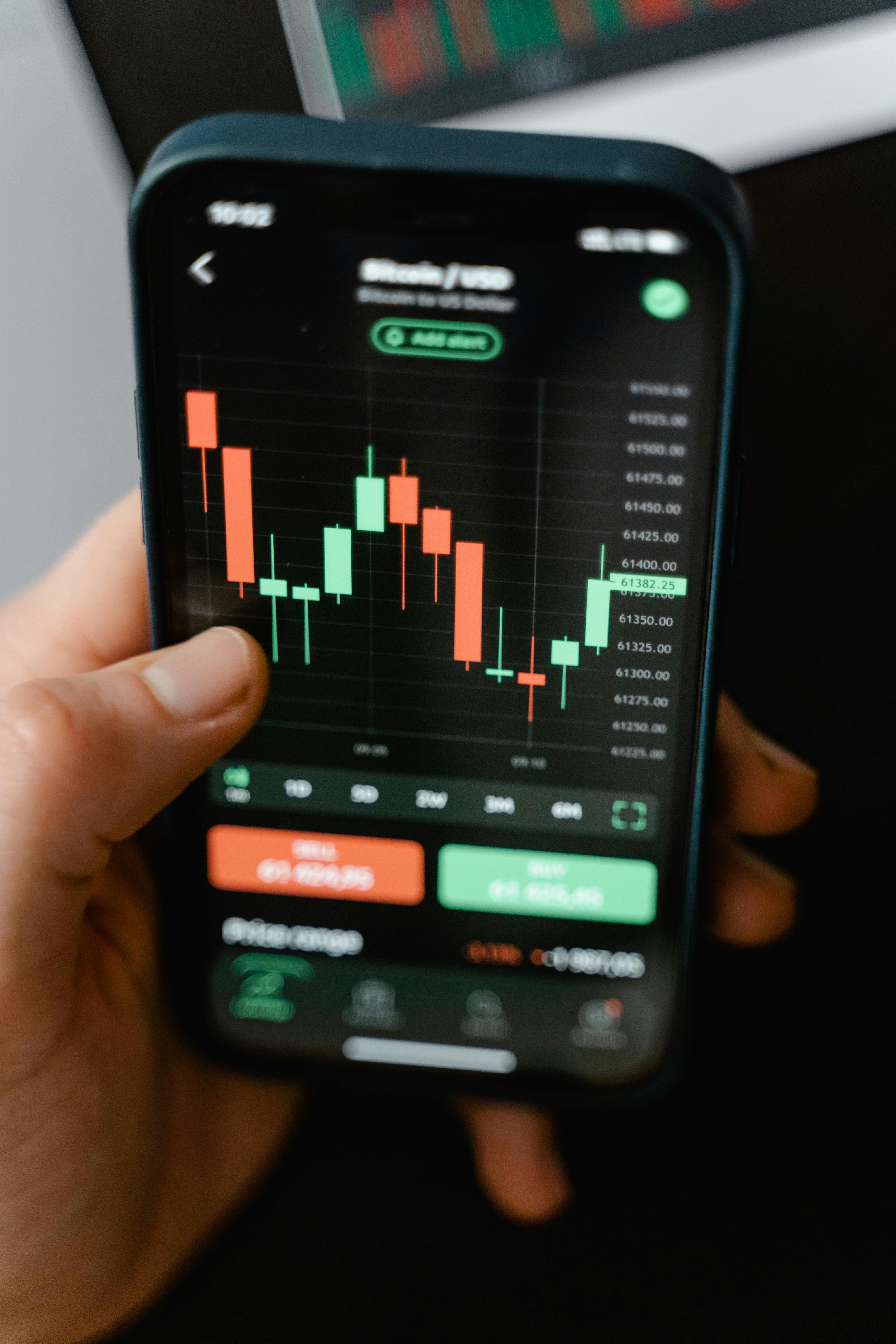

Working with signals
- Max pairs per request follows your plan features. If you hit the limit reduce the list or upgrade.
- Calendar and news filters can skip trades around high impact events on supported plans.
- Sentiment and press are only available on Pro and above. If you do not see them, check your plan.
- Ensemble mode uses more than one model to improve decision quality where your plan allows it.

Dashboards and limits
- Each plan has limits for dashboards, tokens and daily signal requests. If you hit a ceiling you can remove unused dashboards or upgrade.
- The dashboard list shows active, archived and read only boards so you can stay organised.
- If a dashboard looks out of sync, refresh the page. If the issue persists please contact support.
Billing, upgrades and downgrades
Stripe billingUpgrading your plan
- Go to the Pricing page from the navigation header.
- Select the target plan and open checkout.
- Complete payment securely through Stripe.
- Once payment is confirmed your plan and limits update automatically.
Downgrades and cancellations
- You can request a downgrade to a lower plan from the Pricing page.
- Depending on your region Stripe may prorate any changes or apply them at the next cycle.
- If you need to fully cancel your subscription please contact support so we can make sure nothing breaks in your setup.
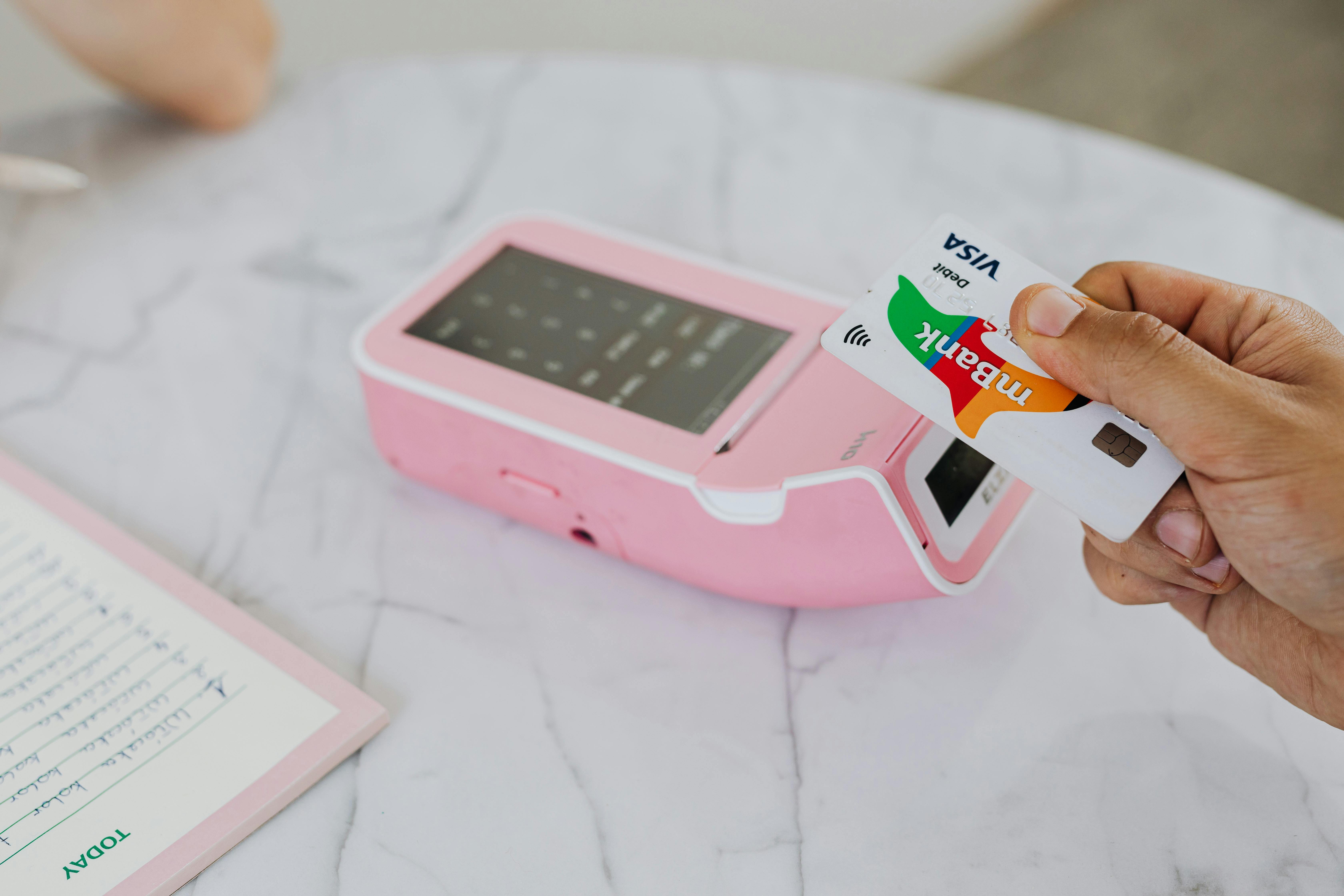
Common issues and quick checks
No signals returned
- Check that the market is open for the pairs you requested.
- Reduce filters such as calendar, sentiment or BB gates if you configured them aggressively.
- Confirm that your plan still has remaining daily signal quota.
Payment or checkout errors
- Make sure your card details are correct and not expired.
- Try a different browser or disable strict content blockers for the checkout page.
- If the charge succeeded but the app did not update, contact support with the last four digits of your card and the time of payment.

Still need help
If something does not look right in your dashboard, or you have questions about risk, model settings or billing, please reach out and we will get back to you.
Email: [email protected]